Car alarm system TYTAN DS 511

AvtoAd
27/10/2022
Content
1. Update.
4. SILENT ON / OFF - function description.
Renewal
The most important changes in DS 511:
1. Application for IOS (iPhone).
2. Immobilizer function.
3. New modes of auxiliary channels.
4. New siren control mode.
5. The ability to control the central lock in DS512 / DS511 has been expanded.
6. Changing the connection of the blue-green wire PIN5 to the white-red PIN9 (added resistor on the harness), mode 1 - analog PAGER - analog connection door entrance.
Device firmware update:
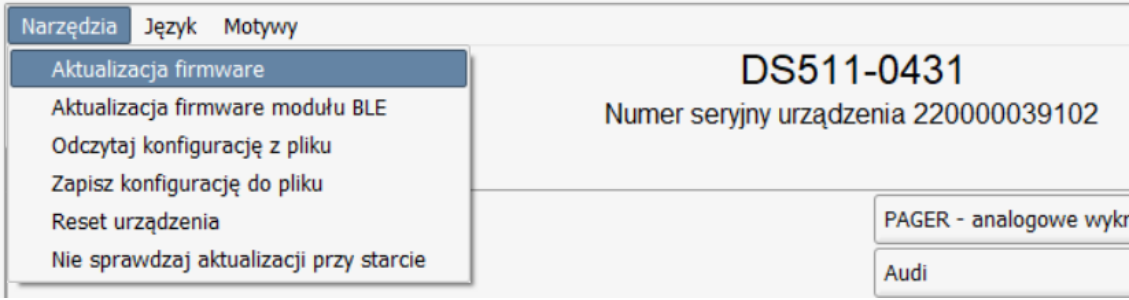
Device firmware update:
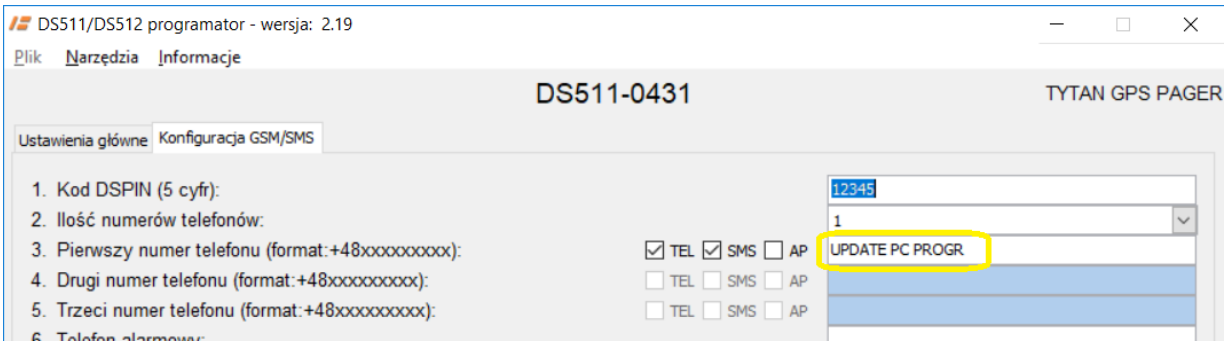
In the old programmer, control units with firmware 3.4.X give the "UPDATE PC PROG" signal.
Connecting BT remotes to the BT radio module. Connecting Joker BT identifiers to the BT radio module
RadioBT, remoteBT and jokerBT generally use the term "pairing" rather than programming, as is the case with various Bluetooth devices.
Necessary equipment
1.1. DS612 or DS512 switch with harness, 12V power supply.
1.2. PC with DS612 / DS512 programmer (without SIM card), USB cable.
1.3. smartphone with titanGPS or TytanBT application installed (no SIM card or Wi-Fi connection required in smartphone) ver. Min. 2.0.0.
Programming is a common activity for jokers and pilots
2.1. Connect the BT radio to the DS612 or DS512 harness.
2.2. Click on "additional modules" in the programmer.

2.3. In DS612 / DS512, the device panel will open, click "activate" next to radioBT.

2.4. On the DS612 / DS512, click "set up".

2.5. The BT setting screen will appear.
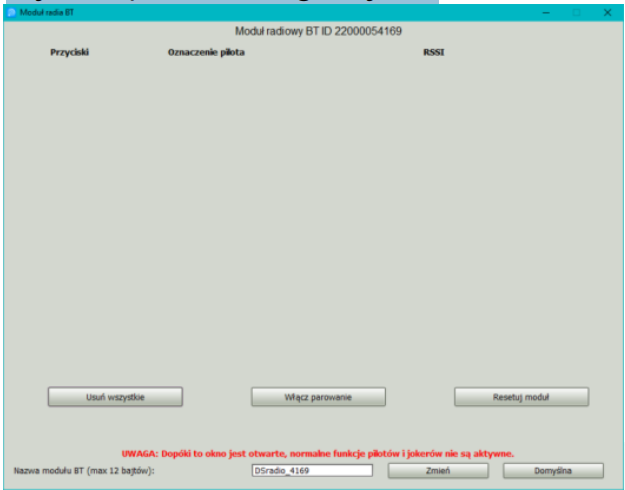
3. Connection of the remoteBT remote control with the radioBT module
3.1. Continue from step 2 until the BT configuration panel is displayed.
3.2. If any BT devices (remote controls, jokers) that we don't need are programmed in the radio module - click the "delete all" button or delete them individually with the "delete" buttons.
3.3. Click the "Enable pairing" button in the radioBT module configuration window of the PC programmer.

3.4. Press and hold the top button on the remote control.
- the LED is flashing
- hold the button until the LED starts flashing again
- then release the button.
- when you release the button, the LED will flash a third time.
3.5. If the pairing was successful:
- after some time, the LED indicator of the remote control flashes 5 times.
- the coded remote control "remoteBT" will appear in the list on the screen.

3.6. PILOT CHECK:
Press both buttons on the remote in turn - the close open icon and the field with the name of the remote will light up.
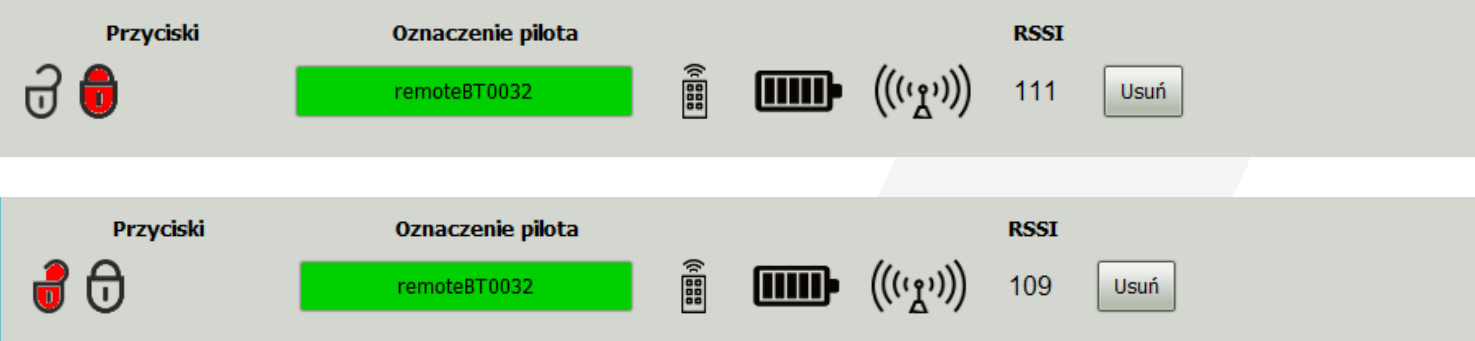
3.7. Completing the BT remote pairing procedure - you can program a second remote or joker or turn off the BT radio.
4. Connecting JokerBT to the radioBT module
4.1. Continue from step 2 until the BT configuration panel is displayed.
4.2. To "view" what is "heard" via Bluetooth, turn on the JokerBT control panel in your smartphone.
4.3. If BT devices (remote controls, jokers) that we do not need are programmed in the radio module - press the "delete all" button on the PC programmer or delete them individually with the "delete" buttons.
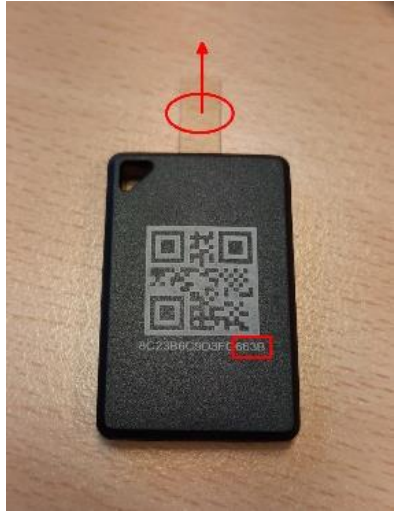
4.4. Remove the strip of foil that insulates the battery in the case of the BT jack (circled arrow), holding the jack a few centimeters away from the smartphone.
4.5. A message should appear in the jokerBT control panel that p is running.
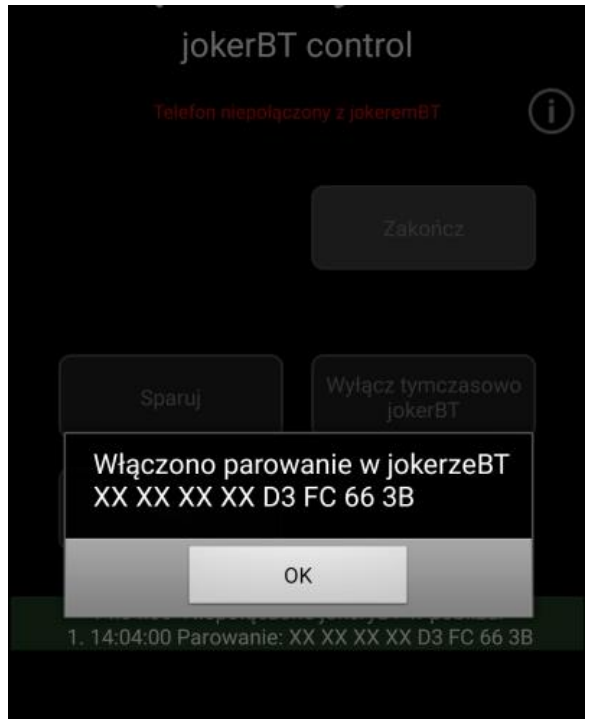
If the above messages appear, click the "Enable Pairing" button in the radioBT configuration window in the PC programmer.

4.6. If the following screen appears after removing the foil:
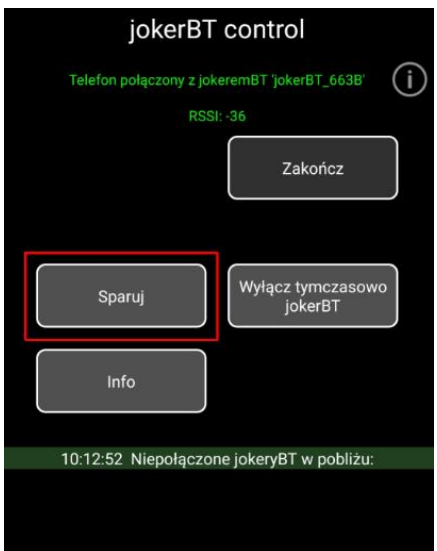
Press the "Pair" button. A message will appear that the pairing has started, and after closing it, a green field will show that jokerBT is trying to connect.
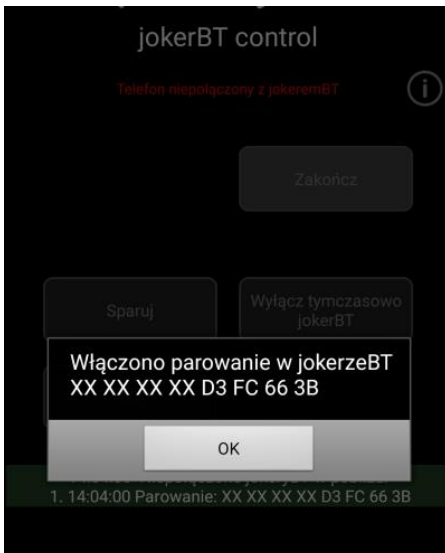
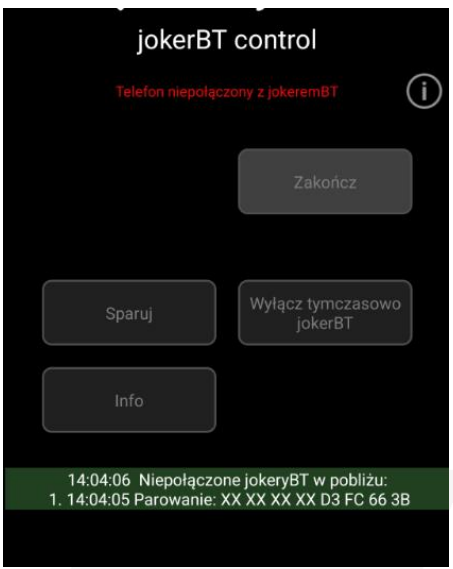
Click the "Enable pairing" button in the radioBT configuration window in the PC programmer.

WARNING!
If no message appears after removing the strip from the joker (neither 4.5 nor 4.6), reinsert and remove the battery isolation strip from the joker while holding the joker closer to the phone.
4.7. If the pairing is successful, JokerBT will appear in the list on the programmer's screen.

4.8. Then the indicator will light up, indicating that the jokerBT is connected to the radioBT module.

4.9. Insert the battery insulation strip into the slot in the joker housing; wait until the lamp goes out. When the lamp goes out, the battery is isolated - jokerBT is packable.

4.10 Completing the BT joker pairing procedure - you can program a second joker or remote control or turn off the BT radio.
Pin code of the workshop
Until now, the only way to put the device into workshop mode was to send a command from the titanGPS program. In case of problems with GSM coverage (for example, in an underground hall), this operation was difficult. Currently, we have allowed the device to go into workshop mode after pressing a certain sequence with the PA button.
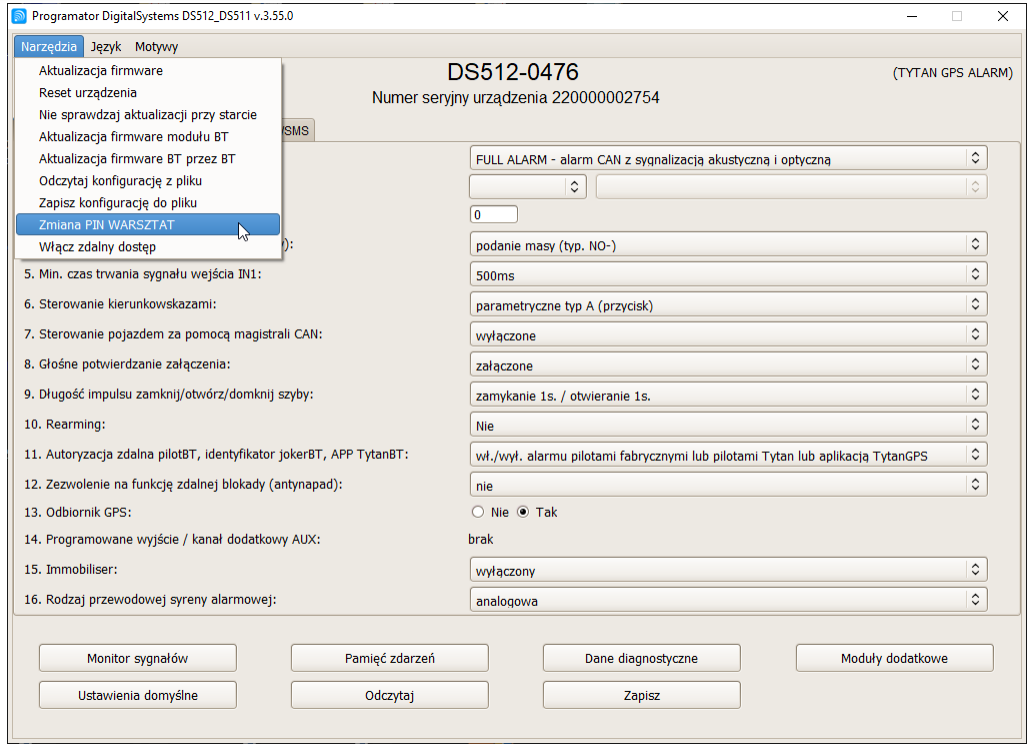
To use the above functions, set the WORKSHOP PIN using the tytanGPS program (1) or the DS512 programmer (2).
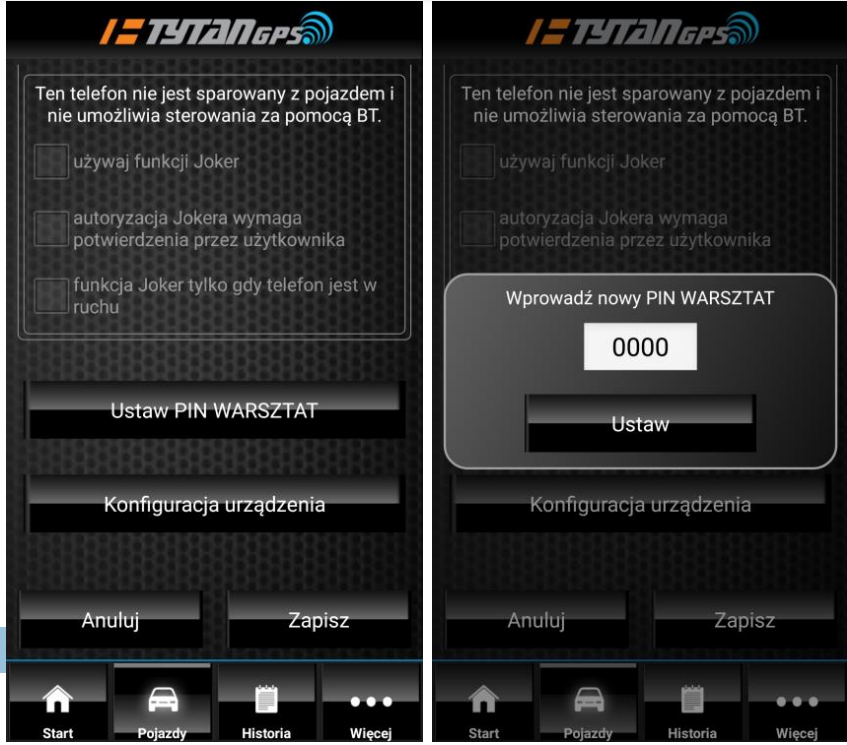
If you leave the WORKSHOP PIN blank or enter 0000, you will disable the PA button Workshop mode feature.
SILENT ON / OFF - function description
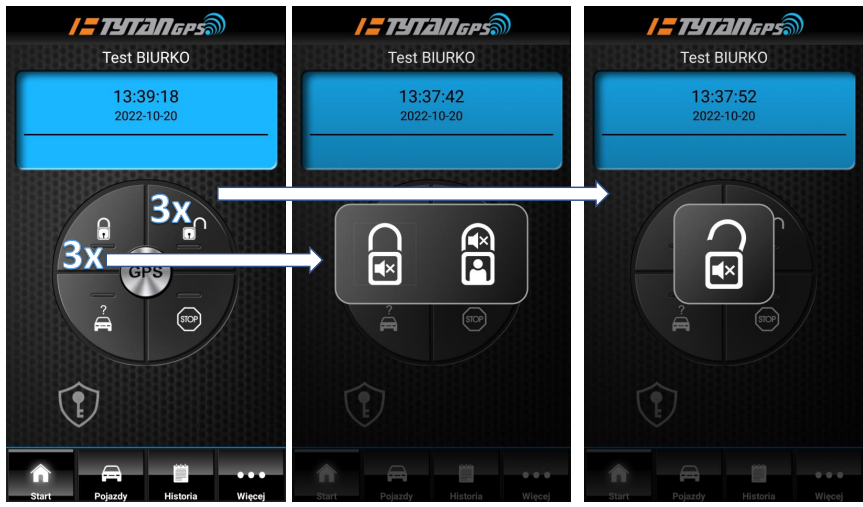
We introduced the option to set / remove the alarm from the titanGPS program level in silent and silent mode without activating the internal protection (silent without sensors). Alarm buttons for silent arming (1) / disarming (2) will appear in the titaniumGPS application after pressing the corresponding button three times (lock closed or unlocked).
If the alarm is enabled (1), the first button will enable silent arming, and the second button will additionally disable internal protection (for example, ultrasonic sensors).
You can also turn off the alarm (2) without an audible confirmation.
System update procedure
Software update procedure (software) in DS512, DS511 devices and radioBT module (device communication module with jokerBT ID, remoteBT, phone with titaniumGPS application).
Before updating, download (http://docs.digitalsystems.pl/#DOKUMENTACJE_DOCUMENTATION/):
- Device programmer.
- FW file for the device.
- If available, the software for the radioBT module.
Place on your computer desktop.
Downloading new software is done using a MINI USB cable connected to the device, updating in the radioBT bluetooth module requires the device to be connected to a power source.
Software update in DS512 / DS511 titanGPS
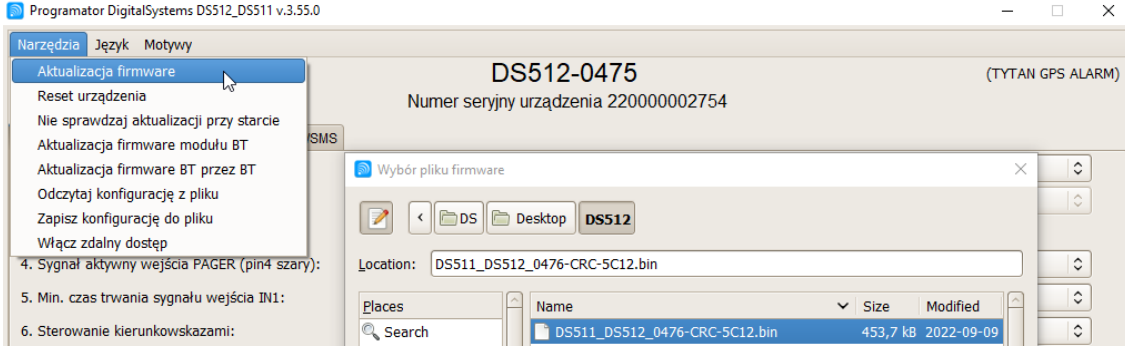
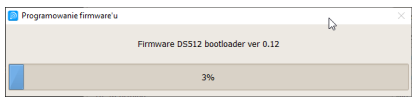
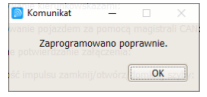

BT radio module software update
DS512 firmware upgrade from v.0475 to v.0476.
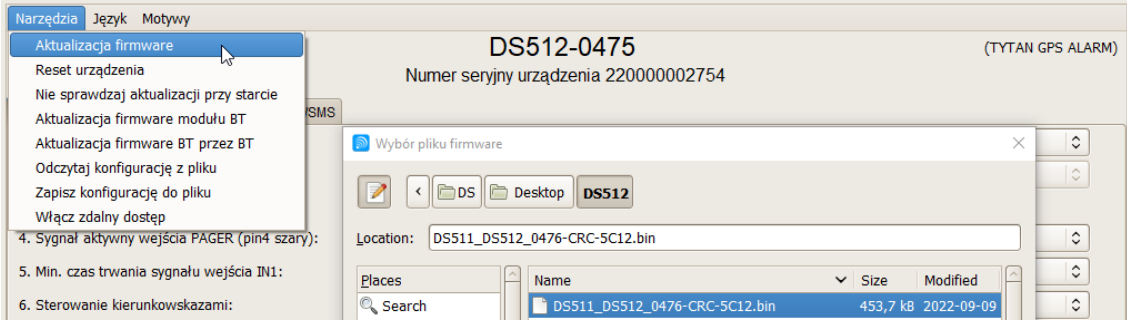
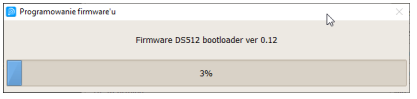
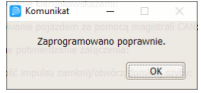

RadioBT module software update
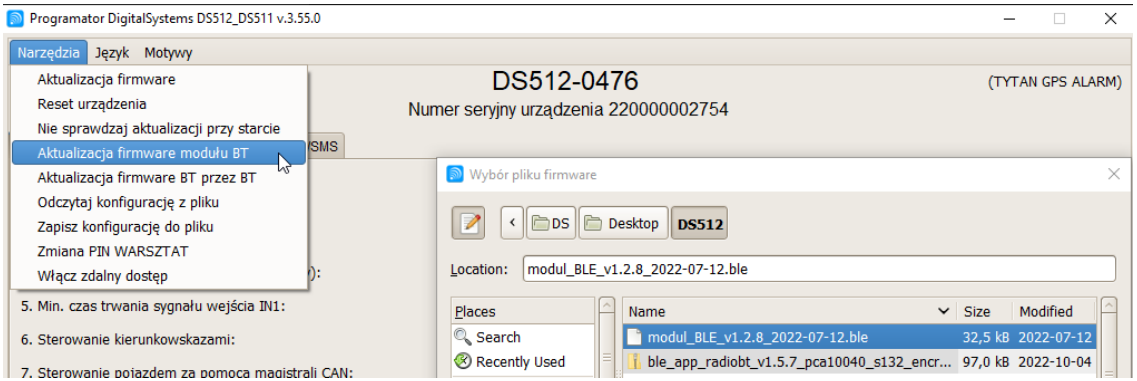
There are two files to choose from, v.1.2.8 is the old version of the radioBT module, v.1.5.8 is the newer version, now on sale. If we select the wrong file, we get the following information.
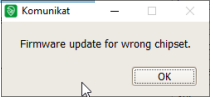
After selecting the correct file, the update process will begin, which may take about 10 minutes.

Read also:
Car alarm system PROXIMA AUTOALARM BP5