Installing Xprinter XP-480B Printer Drivers for Windows

AvtoAd
27/01/2024
Content
- Introduction
- Installing printer drivers
- Update printer drivers
- Uninstalling the printer drivers
- Troubleshooting printing problems
- Downloading the driver
- Printer settings
Introduction
This document will help you install and update Windows printer drivers. After installing or updating, you can refer to the help file included with the drivers for answers to the most common questions. The help file also contains a detailed troubleshooting section.
To access the help file in Windows 10, right-click the printer on the Devices and Printers page, and then select Printer Properties or Printing Options . Click Help in the lower right corner of the dialog box.
The drivers include a DriverWizard utility that you can use to install, remove, and update drivers. We strongly recommend that you use DriverWizard, as the standard Windows Add a Device wizard does not always update existing drivers properly.
Installing printer drivers
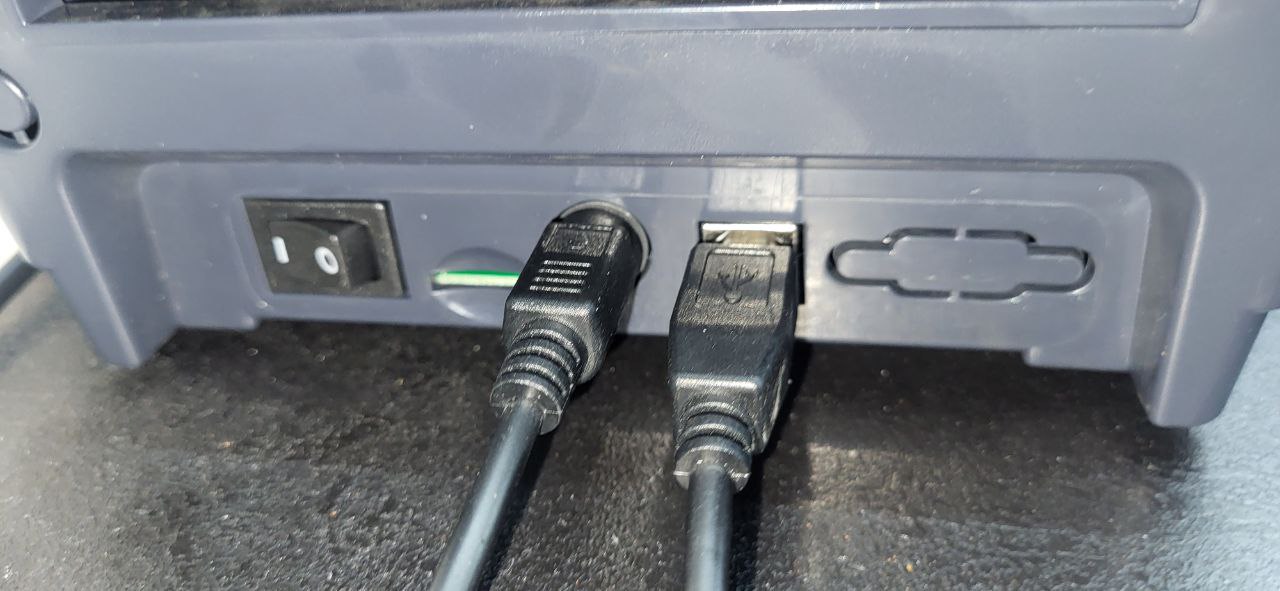
- Turn off the printer, connect the appropriate cable, and then turn on the printer.
- If the printer supports Plug and Play and if you connected it using a USB cable or a parallel cable, then the Windows Add Device Wizard automatically detects the printer and displays a dialog box that allows you to install the driver. Click Cancel and do not install the driver with this wizard.
- In Windows Explorer, navigate to the installation directory where the driver files are located, and then double-click DriverWizard.
- Select Install Printer Drivers , and then click Next .
- Click to select a connection type, then click Next .
- Configure the printer settings according to the steps in the wizard, and then click Finish .
Note. During installation, you may receive a message that the driver is not digitally signed and may not be compatible with your operating system. You can safely ignore this message. This driver has been thoroughly tested with all current versions of Windows.
Update printer drivers
We recommend using DriverWizard to update existing drivers when they become outdated. Updating instead of uninstalling helps ensure your driver settings are preserved. Using the Windows Add Device Wizard to update existing drivers is not recommended because the wizard may not update all driver files properly, leaving the driver in a corrupt state.
- In Windows Explorer, navigate to the installation directory where the driver files are located, and then double-click DriverWizard.
- Click to select Update printer drivers , and then click Next .
- Click to select the printers whose drivers you want to update, and then click Next .
- Click Finish .
Uninstalling the printer drivers
You can use DriverWizard to remove printer drivers from your system. To do this, do the following:
- In the installation directory where the driver files are located, double-click the DriverWizard utility.
- Click to select Uninstall printer drivers , and then click Next .
- Click to select the desired removal method, and then click Next .
- Check the items you want to remove, click Next , and then click Finish .
Troubleshooting printing problems
The help file that comes with the printer driver has a technical support section that contains a section called "Troubleshooting printing problems" . This section provides important parameters to check and a few print tests that will usually fix any problems you may have.
To access the help file in Windows 10, right-click the printer on the Devices and Printers page, and then select Printer Properties or Printing Options . Click Help in the lower right corner of the dialog box.
Downloading the driver
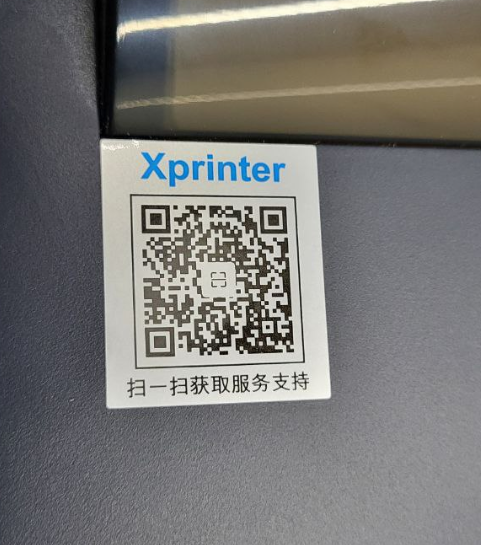
The printer will have a QR code to go to a site to download the software and drivers.
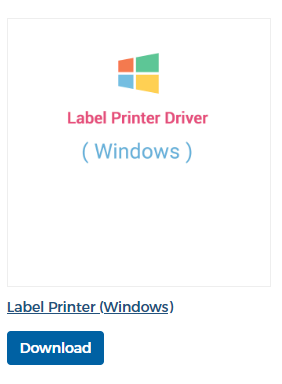
Select Label Printer Driver and download it.
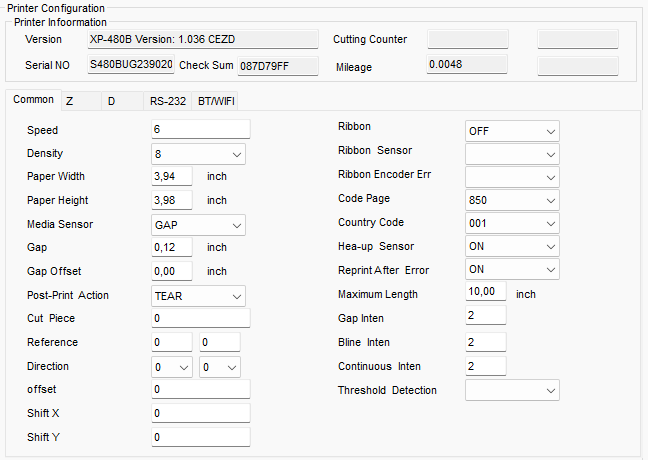
Printer settings
We download the utility from the site ,
We launch the utility
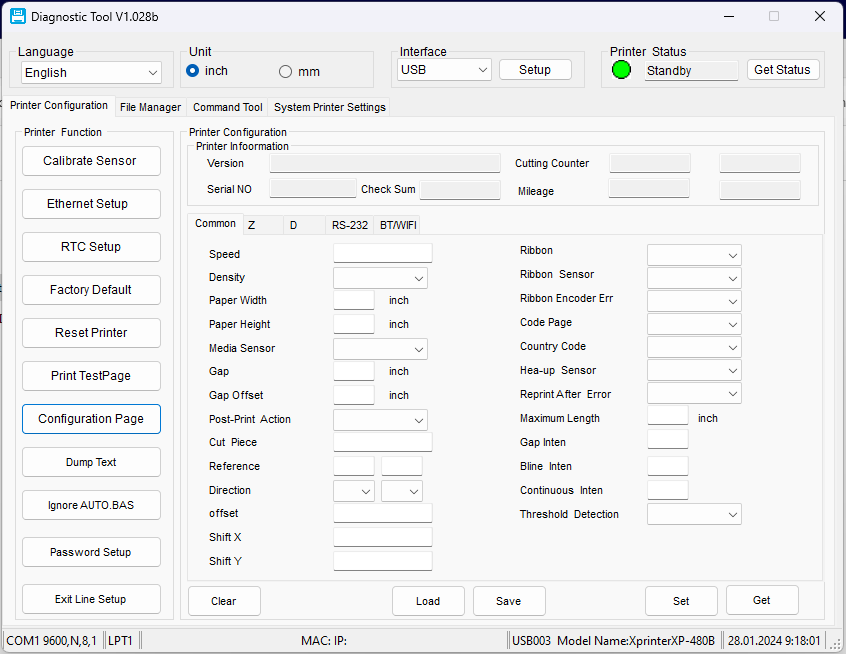
Click "Get Status", make sure that the printer is connected, and configure the printer according to your needs.
You can check the printer settings using "Configuration Page", the printer will print the existing settings.
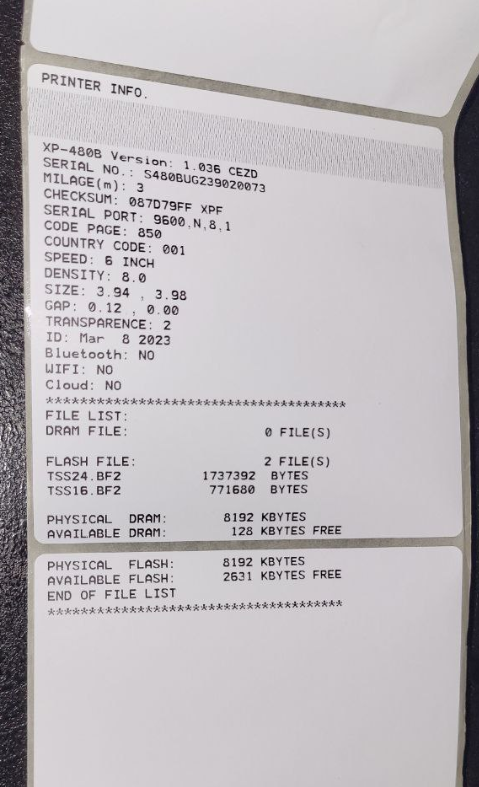
Or tap on ''Get'' and the settings data will be displayed in the program